OBS Studio vs SimpleScreenRecorder: Which Screen Recorder Is Right for You?
Two Recording Tools, Two Philosophies
If you’re on Linux and need to record your screen — whether for a tutorial, a gameplay video, or a software demo — you’ve probably heard of OBS Studio. It’s the heavyweight champion of live streaming and recording, packed with features that rival commercial software. But there’s another contender that’s lighter on resources and simpler to set up: SimpleScreenRecorder.
This comparison breaks down the key differences between OBS Studio and SimpleScreenRecorder so you can pick the right tool for your workflow.
At a Glance
| Feature | OBS Studio | SimpleScreenRecorder |
|---|---|---|
| License | GPL-2.0 | GPL-3.0 |
| Platforms | Linux, Windows, macOS | Linux |
| Interface | Qt6 with dockable panels | Qt-based, straightforward layout |
| Live streaming | Yes (mature, multi-platform) | Experimental (RTMP) |
| Scene composition | Full scene system with sources | Single recording area |
| Filters & effects | Extensive (chroma key, color correction, audio filters) | None built-in |
| WebSocket control | Built-in (port 4455) | Not available |
| Performance overhead | Moderate (more features = more CPU) | Very low (lightweight, multithreaded) |
| OpenGL recording | Via screen capture | Direct OpenGL injection |
| Pause/resume | No native pause | Yes, via button or hotkey |
| Live preview | Always-on preview canvas | Optional preview |
When to Choose OBS Studio
OBS Studio is the right choice when you need professional-grade production. Its scene composition system lets you layer multiple sources — screen capture, webcam, images, text overlays, browser windows — and switch between different scenes seamlessly using Studio Mode. If you’re live streaming to Twitch, YouTube, or any RTMP destination, OBS is the industry standard for good reason.
OBS also excels with its filter system. Need a green screen effect? Chroma key is built in. Want to clean up microphone audio? The RNNoise noise suppression filter works remarkably well. Color correction, compression, gain — every source can have its own set of filters.
The built-in WebSocket server (enabled by default on port 4455) lets you control OBS remotely from scripts, phone apps, or automation tools. This is invaluable for stream decks, automated recording pipelines, or integrating OBS into a larger production workflow.
However, all this power comes at a cost: OBS has a steeper learning curve and higher CPU usage. On a modest system, you’ll need to tune settings carefully to avoid dropped frames.
When to Choose SimpleScreenRecorder
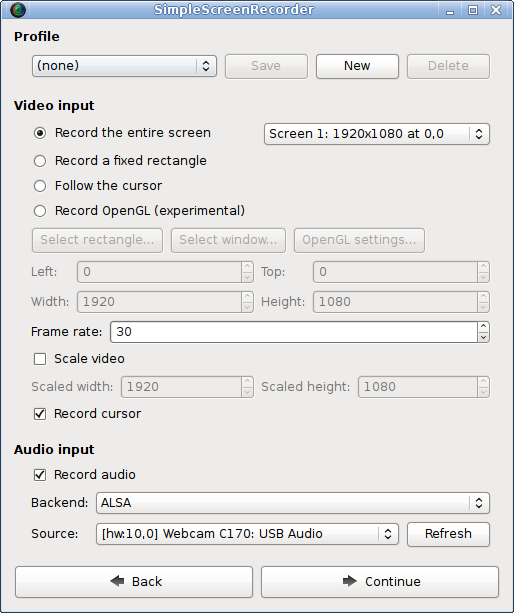
SimpleScreenRecorder shines in the scenarios where OBS is overkill. If you just want to record your screen — a software tutorial, a coding session, a quick demo — without configuring scenes, sources, and transitions, SSR gets the job done in seconds.
Its performance is genuinely impressive. SimpleScreenRecorder is fully multithreaded, meaning it distributes encoding, muxing, and I/O across separate threads. The result is smoother recording on modest hardware, especially multi-core systems. The official site reports it’s faster than VLC and ffmpeg/avconv for screen recording tasks.
A standout feature is direct OpenGL injection. SSR can hook into running OpenGL applications to capture their output directly — similar to how Fraps works on Windows. This produces cleaner game recordings than desktop-level screen capture, with better performance to boot.
Other quality-of-life touches include:
- Pause and resume — hit a hotkey to pause mid-recording, then pick up where you left off. OBS has no native pause function.
- Adaptive frame rate — if your system can’t keep up, SSR drops frames gracefully instead of consuming all available RAM (a known issue with VLC).
- Live statistics — file size, bitrate, actual frame rate, and recording time shown in real-time.
The main limitation is that SSR is Linux-only. If you need to record on Windows or macOS, OBS is your only option between these two.
Quick Decision Guide
Still unsure? Here’s a quick rule of thumb:
- Go with OBS Studio if: You need live streaming, scene composition, webcam overlays, audio filters, multi-platform support, or remote control via WebSocket.
- Go with SimpleScreenRecorder if: You’re on Linux and want a lightweight, no-fuss recorder for straightforward screen capture with excellent performance on modest hardware.
Installation
Both tools install easily on Debian-based systems:
# OBS Studio
sudo apt update
sudo apt install obs-studio

# SimpleScreenRecorder
sudo apt update
sudo apt install simplescreenrecorder
Final Verdict
OBS Studio and SimpleScreenRecorder aren’t really competitors — they serve different needs. OBS is a full production studio for streamers and content creators who need scene management, filters, and multi-platform streaming. SimpleScreenRecorder is a focused, lightweight screen recorder for Linux users who want the simplest path from “open app” to “recording video.”
There’s no wrong choice here. Install both, try them for your specific use case, and keep the one that fits. If you do a lot of live streaming or multi-source recording, OBS will grow with you. If you primarily record straightforward screen captures on Linux, SimpleScreenRecorder will save you time and CPU cycles.