Audacity 3.x — Free Audio Editing for Podcasters and Musicians
What Is Audacity?
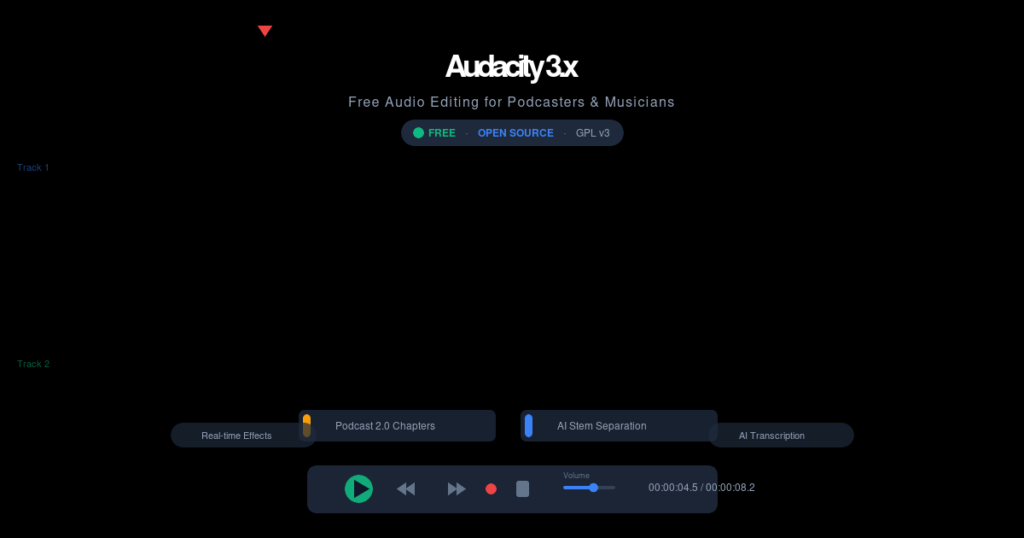
If you haven’t looked at Audacity since version 2.x, you’re in for a surprise. It’s not the same bare-bones editor anymore. The project that’s been around since the dawn of the millennium — over 200 million downloads and counting — has quietly evolved into something genuinely competitive, and most people haven’t noticed.
I’ve been using Audacity on and off for years, mostly for quick edits and trimming podcast episodes. Every time I opened it, I expected the same slightly clunky, Windows-98-era interface. What I got in 3.6.0 and above is a dark-themed, modern audio editor that finally feels like it belongs on a 2026 desktop. But the redesign is just the surface. The real story is under the hood.
In this post I’ll walk through what’s changed, what works, and whether Audacity 3.x is finally the free audio editor you can rely on for real work — whether you’re a podcaster, a musician, or just someone who needs to edit audio without paying a monthly subscription.
Getting Started — Installation & First Run
Downloading Audacity is refreshingly honest. Head to audacityteam.org, click the download button for your platform, and that’s it. No sign-up wall, no email gate, no “upgrade to pro” nags before you’ve even opened it. It’s just free.
Platform-specific notes worth knowing:
- Windows: Grab it directly from the site or install via winget —
winget install audacity— if you prefer the command line. - macOS: Apple Silicon users get a native ARM64 binary since 3.2.0. There’s a separate Intel build if you need Rosetta compatibility for older VST plugins.
- Linux: The AppImage works on Ubuntu 22.04 and most modern distros. No PPA wrangling. On Debian:
sudo apt install audacity. - MuseHub (optional): If you download via MuseHub, you get free Muse Sounds (sampled instruments), Elements (looping clips), and Muse FX (effect plugins) bundled in. Worth it if you make music, completely skippable if you only edit speech.
First-run impression: the dark theme introduced in 3.6.0 is a genuine improvement. Gone are the beige toolbars and grey backgrounds. It still looks like an audio editor — not a design showcase — but it no longer looks like abandonware.
The single biggest quality-of-life change is the .aup3 project format (introduced in 3.0.0). Old Audacity projects were a messy combination of one .aup XML file plus a folder of hundreds of tiny .au files that broke the moment you moved a project. .aup3 is a single SQLite-based file. Drag it, copy it, share it — everything stays together. When you open an old .aup project, Audacity converts it automatically.
One setup tip: download FFmpeg from the Audacity website. It’s free, one-time, and enables M4A/AAC import and export. Without it, you can’t work with iTunes-purchased music or many podcast MP4 files.
Basic Editing — What’s Changed Since 2.x
The editing workflow is where Audacity 3.x makes its biggest leap. If you learned Audacity on 2.x, here’s what’s different.
Real-time, non-destructive effects (3.2.0): This is the headline feature. In old Audacity, every effect was destructive — you applied compression or EQ, clicked OK, and that was your audio permanently changed. Want to try a different setting? Undo, reapply, pray. Now, effects stack as a chain on each track. You can toggle them on and off, reorder them, adjust parameters, and hear the result in real time. A/B comparisons are instant. This alone makes 3.x worth the upgrade.
Practical example: You record a vocal take with room echo. In 2.x, you’d apply noise reduction, then EQ, then compression — three separate destructive operations. In 3.x, you add a noise gate, an EQ, and a compressor to the track’s effect stack, tweak each one while listening, and nothing is permanent until you export. If you change your mind, just toggle the effect off.
Time stretching (3.4.0): Hold Alt and drag the edge of a clip to change its duration without affecting pitch. A backing track that’s 4:20 but your video section runs 3:45? Alt-drag, done. Pitch stays true.
Pitch shifting (3.5.0): Alt+Up or Down arrow shifts a clip by semitones, with a visual indicator showing the amount. Non-destructive, instant, reversible.
Clip overflow menu (3.5.0): Every clip now has a three-dot menu for rename, pitch, speed, and other per-clip controls. No more hunting through the menu bar for basic operations.
Paste audio as files (3.6.0): Ctrl+V works on audio files — copy a WAV or MP3 from your file manager and paste it directly into the project. Feels obvious once you try it, but it took years to arrive.
Middle-mouse drag panning (3.7.6): Click the middle mouse button and drag to scroll the waveform horizontally. A tiny thing, but the kind of tiny thing that saves you hundreds of micro-frustrations in a long session.
Podcast-Specific Features
If you produce a podcast — even casually — Audacity 3.x now has features that no other free editor offers, and a few that even premium editors lack.
Noise Reduction & Audio Repair: The classic workflow is still the best — select a few seconds of background noise (room hum, fan noise, HVAC), go to Effect > Noise Reduction > Get Noise Profile, select the whole track, and apply. It works on everything from laptop fan to air conditioning. The real-time noise gate in 3.x lets you clean up background hiss during recording, not just in post.
AI Transcription (Whisper): This one surprised me. Audacity integrates OpenAI’s Whisper model to generate transcriptions directly on your machine. No uploads, no API keys, no credits. Select your track, run the transcription, and a label track appears with timestamped dialogue. You can search it, edit it, and export it as show notes. For a free tool, this is borderline magic.
Silence Truncation (3.7.8): This feature lets you trim silence from the start, middle, and end of clips independently, each with their own threshold and duration settings. For long-form podcast editing, this saves literal hours. Run it once and your “ums”, “ahs”, and breathing pauses are tightened without sounding chopped.
Podcast 2.0 Chapters (3.7.8): This is the sleeper hit. You can export label tracks as Podcast 2.0 chapters JSON — a web-standard format supported by Overcast, Pocket Casts, Apple Podcasts, and most modern podcast apps. Add label tracks for your segments (intro, interview, outro), export as JSON, upload alongside your MP3. Listeners see chapters in their app. No other free audio editor does this natively — not even Adobe Audition.
Practical workflow: Record your episode. Add label marks at each segment boundary. Run silence truncation to clean up dead air. Export MP3 for distribution and Podcast 2.0 JSON for chapters. Upload both to your host. That’s three steps and zero extra cost.
Multi-track recording: If you record co-hosts or guests through a single mixer, Audacity can capture each input on its own track. Edit, move, and process each track independently.
Export presets: Set up your podcast preset once — MP3 at 128 kbps, mono, trimmed silence — and export every episode in two clicks. No encoder purchase, no additional software.
Musician-Specific Features
For musicians and home studio producers, Audacity 3.x isn’t trying to replace Ableton or Logic — and you shouldn’t expect it to. There is no MIDI sequencing, no built-in virtual instruments, no piano roll. What it does do — tracking, editing, processing, and mixing audio — it now does well enough to compete with paid options in its lane.
Beats & Measures / Musical View (3.4.0): Switch the timeline from hh:mm:ss to bars and beats. Automatic tempo detection analyses imported loops, recognises BPM from filenames and Acidizer tags, and offers to match them to your project tempo. For anyone who’s ever tried to align a loop manually by zooming in and nudging clips, this is a revelation.
AI Stem Separation (3.4.x): Select any track, run the Vocal Remover / Stem Separation tool, and Audacity splits it into vocals and instrumentals (or drums, bass, and other stems depending on the model). All on-device — no uploads, no limits. Need a karaoke track from a full song? Done. Want to extract a vocal line for a remix? Thirty seconds.
VST3 Support (3.2.0): Load your favourite third-party plugins — Neural DSP amp sims, Valhalla reverb, iZotope Ozone — as real-time effects. Stack them, reorder them, bypass them without commitment. This is the feature that finally makes Audacity usable as a serious mixing tool. If you already own plugins, you can use them here.
Master Effects (3.6.0): Compression, limiting, and EQ on the master bus. The redesigned compressor includes a gain reduction history display and factory presets for voice, music, and mastering. Polish your final mix in one place instead of bouncing to a separate master tool.
Export to Lossless Formats: FLAC for archival, WAV for distribution, Opus for demos. Sample rates up to 384 kHz at 24 or 32-bit. No format is paywalled. If your distributor accepts FLAC, Audacity exports it without asking for money.
Reality check: Audacity is not a full DAW. You cannot sequence MIDI, you will not find a built-in synth, and there is no piano roll. But if your workflow is “record audio → edit → process → mix → export”, Audacity 3.x covers every step at a quality level that cost hundreds of pounds ten years ago.
Export Tips & Best Practices
The unified exporter (introduced in 3.4.0) puts everything in one window — format, sample rate, channel mapping, metadata tags. No more clicking through five dialogue boxes.
For podcasters:
- MP3 128–192 kbps is the standard for podcast distribution. Mono for speech saves bandwidth and sounds identical. Stereo only if your show uses music beds or field recordings.
- Opus produces better quality at smaller file sizes than MP3 at the same bitrate. If your host supports it, use it.
- M4A/AAC is a good middle ground — better quality than MP3, widely supported.
- Podcast 2.0 JSON export workflow: Add label tracks for each chapter segment → export as Podcast 2.0 JSON → upload alongside your MP3. Most podcast apps detect and display chapters automatically.
For musicians:
- FLAC for lossless delivery to Bandcamp, Distrokid, or CD mastering.
- WAV when you need uncompressed compatibility with other DAWs.
- MP3 at 320 kbps for previews and SoundCloud uploads.
- Opus for demo sharing — tiny files, surprisingly good quality.
Channel mapping: The exporter supports custom 5.1 and 7.1 surround mapping if your project needs it. A niche feature, but one that would cost you a lot in any other tool.
Final check: Export to WAV first — lossless checkpoint, no format compromises. Listen through on headphones AND speakers. Then encode to MP3/Opus from the WAV. Most podcasting problems come from skipping this step.
The Bottom Line
Audacity 3.x bridges the gap between “it’s free but basic” and “I need a real tool” — without losing the simplicity that made it popular in the first place. It’s not trying to be Ableton. It’s not trying to be Pro Tools. It’s trying to be the best free audio editor, and at this point it’s succeeded.
The features that matter — real-time non-destructive effects, AI transcription and stem separation, Podcast 2.0 chapters, silence truncation, VST3 support — are all here, all free, and all genuinely useful. If you haven’t updated since 2.x, do it today. Everything is better. And it’s still free.
Download it at audacityteam.org — free, no subscriptions, no account required.
Looking for more creative tools? Browse our Creative & Multimedia directory for more free software.
Enjoy!