Shutter
- Platform
- Linux
- Licence
- GPL-3.0-or-later Open source
- Website
- shutter-project.org/
- Source code
- github.com/shutter-project/shutter
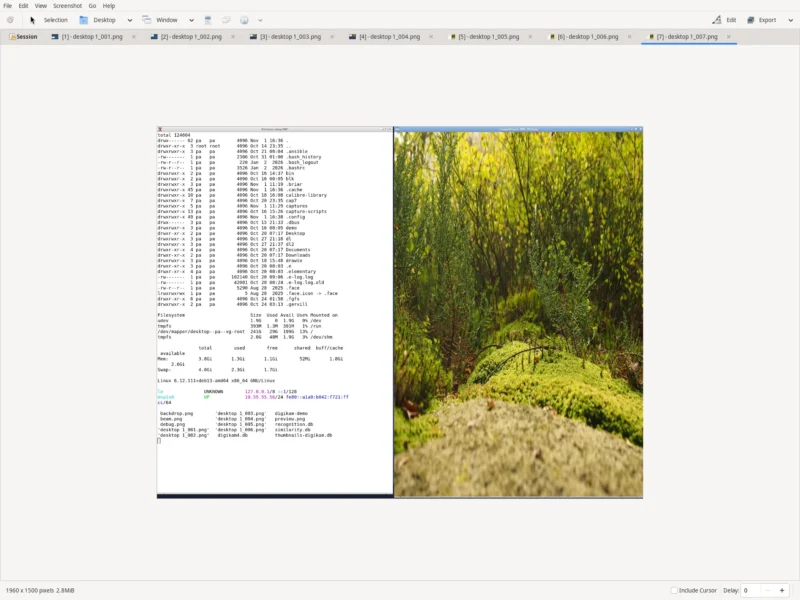
Shutter is a screenshot suite for the Linux desktop that does the whole job inside one window: choose precisely what to grab, clean it up in a built-in editor, and push it to an image host without opening GIMP or a file manager. It is written in Perl against GTK3 — a combination that once made it look dated, and now makes it a rare survivor: a full screenshot application that never moved to a keyboard-only workflow.
Mario Kemper started Shutter in 2008, and for years it was the best-known screenshot tool on Ubuntu. Its GTK2 and discontinued libraries stopped building on newer systems and most distributions dropped the package; the community then ported it to GTK3 and moved development to GitHub under the Shutter Team, and it is being packaged again. The current release is 0.99.7, published on 9 May 2026; Debian 13 (trixie) ships 0.99.6-2, which is the version this listing was checked against. Releases are infrequent but real: 0.99.5 in March 2024, 0.99.6 in March 2025, 0.99.7 in May 2026.
Key Features
- Eight capture modes from one toolbar. An arbitrary rectangle with
-s(optionally asX,Y,WIDTH,HEIGHT), the whole desktop with-f, a window picked with the mouse or matched by a Perl regex with-w, the active window with-a, a child window with--section, a menu with-m, a tooltip with-t, a web page with--web, and a redo of the last shot with-r. - Menus and tooltips on a countdown. Both modes start a user-defined timer, so you can open the menu that would otherwise close the moment you moved the mouse toward the shutter button. Shutter recognises the menu or tooltip that appears and captures it.
- Multi-monitor aware. Captures every screen at once or just the monitor that is currently active.
- A tabbed session. Each shot arrives as a tab you can return to, re-edit, export or close, instead of being written to a folder and forgotten.
- Delay, cursor and filename control.
-d SECONDSwaits before shooting,-cand-Cdecide whether the pointer ends up in the image, and-otakes strftime patterns plus$w,$h,$nameand a running counter, so%y-%m-%d_$w_$h.pngnames itself. - Export outside the usual formats. PNG, JPEG, GIF and BMP are the obvious ones; Shutter also saves to PDF, PostScript and SVG.
The built-in editor
The reason most people install Shutter is that highlighting a step in a screenshot no longer means a round trip through an external graphics editor.
- Primitives and text. Rectangles, ellipses, lines, arrows and text, each with its own colour, font and line width.
- Censor and pixelate. Two blunt but effective tools for hiding an IP address, an email or a token before a screenshot leaves the machine.
- Auto-increment shapes. Drop numbered markers on a screenshot in sequence — the tedious part of writing a step-by-step guide — without typing the digits yourself.
- Crop. Drag a region or type the exact dimensions into the input fields.
- Drawing tools for high-resolution screens. 0.99.7 exists mostly to fix the Drawing Tool, which broke on gdk-pixbuf2 versions above 2.44.4, and it widened the marker tool and added a light icon set for dark GTK themes.
Effects, plugins and sharing
A set of small plugins sits between capture and save. Version 0.99.6 ships sepia, negate, polaroid, watermark, shadow, resize, trim, greyscale, offset, raise, sunk, soft edges and torn-paper effects, each applied to the image in the session. Uploading is a menu item rather than a browser tab: the same release carries upload plugins for Imgur and Gyazo, and it formats the resulting link for pasting straight into a forum, wiki or chat message.
Command line and automation
Everything the toolbar does has a flag, and a capture can be scripted into something else entirely. The manual’s own examples are the clearest summary: shutter -s=100,100,300,300 -e grabs a fixed rectangle and exits, shutter --window=.*firefox.* photographs a browser by regex, shutter --web=http://example.org/ -e renders a page headless, and shutter -f -e -o './%y-%m-%d_$w_$h.png' saves a dated, self-describing full-screen shot. -e exits after the first capture and -n keeps the shot out of the session, which is what makes those calls usable inside a script; -p loads a saved profile so a hotkey can run a different configuration from a cron job.
Everyday uses
- Tutorials and manuals — capture a step, crop it, add an arrow and an auto-increment marker, export, done.
- Bug reports — grab the one window that misbehaves, pixelate the account name, attach the PNG.
- Answering in forums and chat — upload to Imgur from the editor and paste the formatted link.
- Documenting a menu — the countdown capture is the only reliable way to photograph a menu that closes on click.
- Scheduled evidence — a profile plus
-eturns Shutter into a scripted screenshot command.
Running it today
Shutter is Linux-only and needs an X display. On Wayland it goes through xdg-desktop-portal (0.99.1 and later), with the backend matching the compositor — xdg-desktop-portal-gtk, -kde or -wlr. The dependency list is long because it is a Perl GTK3 application: GTK3 itself, Gtk3::ImageView, GooCanvas2, libwnck-3 via GObject Introspection, ImageMagick with PerlMagick. Optional pieces add WebP support (webp-pixbuf-loader), AVIF (libavif), the tray icon (an AppIndicator library) and website capture (gnome-web-photo). Packages exist for Debian, Ubuntu, Linux Mint, Arch, Manjaro, Fedora, Gentoo and openSUSE, so apt install shutter or pacman -S shutter is usually the whole installation.
Alternatives
- FlameShot — a lighter annotation-first capture tool, faster to open and better suited to quick region grabs.
- Spectacle — the KDE utility, the natural choice inside Plasma.
- scrot — the command-line counterpart for scripts that never need a window at all.
Repository and documentation: github.com/shutter-project/shutter